How to Fix Blurry Photos: Old Prints, Phone Shots and Scans
How to fix blurry photos: identify the type of blur, sharpen faces and details with AI, use manual sharpening wisely, and know what can't be recovered.
By Ayoub Farid · · 3 min read


Blur is the most common reason a photo disappoints: the one shot of everyone together where Grandpa moved, the beach photo that came out soft, the old print that was never quite in focus. Modern AI can fix a surprising amount of blur, especially in faces, but not all blur is the same.
This is our hub article for enhancing and unblurring photos. Start here, then follow the links for specific problems.
Step 1: Identify the type of blur
| Blur type | What it looks like | How fixable |
|---|---|---|
| Soft focus | Everything slightly soft, no direction | Very fixable |
| Out of focus | Subject blurry, maybe background sharp | Fixable to a point |
| Motion blur | Streaks in one direction, double edges | Partly fixable |
| Low resolution | Pixelated, blocky, small image | Very fixable with upscaling |
| Compression | Blocky artifacts, smeared detail | Fixable |
| Grain/noise | Speckled texture, not true blur | Very fixable |
Detailed guides: out-of-focus photos, motion blur, pixelated photos, grainy photos, compressed WhatsApp photos.
Step 2: Make sure the blur is in the photo, not the scan
Before fixing anything, check your capture. A blurry scan of a sharp print is the easiest problem of all: just recapture it.
- Tap to focus on a face when photographing a print.
- Keep the phone steady, elbows on the table.
- Clean the lens.
- Use enough light so the phone doesn't use a slow shutter speed.
See how to scan photos with your iPhone.
Step 3: Fix the blur with AI
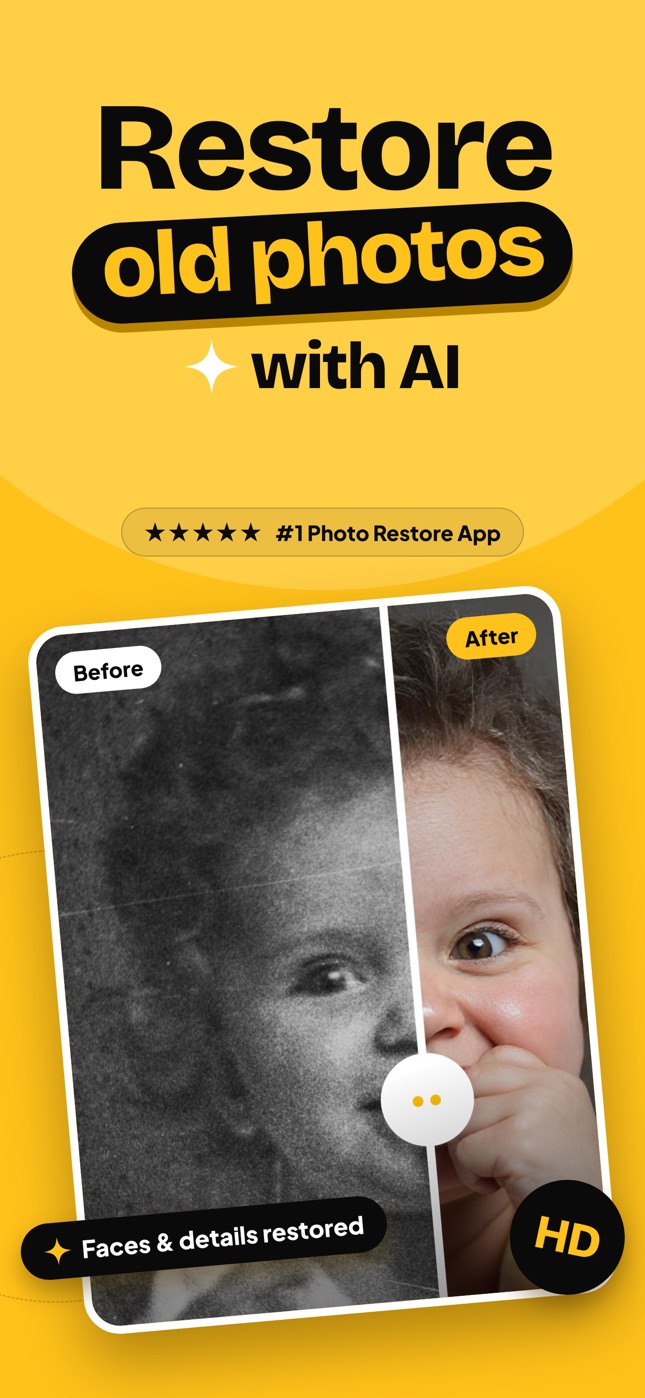
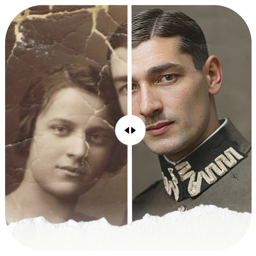
AI enhancement predicts sharp detail from blurry input. It's especially strong on faces, because face models know what eyes, lips and hair should look like. In Refixo, choose the photo and tap Restore: faces and details are sharpened, noise is reduced and the image is enhanced to higher quality, along with color and damage repair for old prints.
The couple in autumn leaves on our homepage started as a blurry, low-resolution image (an AI-generated example for illustration).
Step 4: Use manual sharpening carefully
Traditional sharpening (Unsharp Mask, Smart Sharpen, the iPhone's Definition and Sharpness sliders) increases contrast along edges. It helps slightly soft photos but can't rebuild detail, and too much creates halos and crunchy noise. Use it lightly, after AI enhancement if at all.
What can't be fixed
- Extreme motion blur where the face is a streak.
- Faces that are only a few pixels wide: AI can create a face, but it may not look like the person.
- Blur from a smudged lens across the whole image: partially fixable, but results vary.
For more on limits, read is AI photo restoration accurate?
More enhancement guides
- Unblur old photos
- Enhance low-quality photos
- Upscale old photos
- Sharpen faces in old photos
- Enhance old digital camera photos
- Increase photo resolution for printing
- Restore old phone photos
- Restore small wallet photos
Frequently asked questions
Can a blurry photo be made clear?
Often, yes. Soft and low-resolution photos improve dramatically with AI. Strong motion blur and tiny faces are harder.
What's the best way to unblur a face?
AI face enhancement, which rebuilds eyes, lips and hair detail from the blurry input. Compare with the original to check the likeness.
Can I fix a blurry photo on iPhone?
Yes. The Photos app's Sharpness slider helps a little; a restoration app like Refixo sharpens faces and details far more.
Why does sharpening make my photo look worse?
Traditional sharpening exaggerates edges and noise. Use it lightly, or use AI enhancement instead.
Restore it in seconds
Bring your old photos back to life
Refixo's AI removes scratches, tears and stains, sharpens faces and colorizes black & white photos in seconds. Free to download on iPhone and iPad, with a 3-day free trial.
Download on theApp Store