Restoring Old Photos for Printing: Resolution, Sizes and Paper
How to restore old photos for printing: the resolution you need for each print size, how to scan and restore for print, and tips for paper and color.
By Ayoub Farid · · 2 min read


A restored photo looks great on a phone screen, but a print is less forgiving. Every soft edge, every leftover speck and every color issue shows up on paper. Here's how to restore with printing in mind.
The rule of thumb: 300 pixels per inch
For sharp prints viewed up close, aim for about 300 pixels per inch (ppi) at the final print size. Large prints viewed from a distance can go lower, around 150–200 ppi.
| Print size (inches) | Ideal pixels (300 ppi) | Acceptable (≈200 ppi) |
|---|---|---|
| 4 × 6 | 1200 × 1800 | 800 × 1200 |
| 5 × 7 | 1500 × 2100 | 1000 × 1400 |
| 8 × 10 | 2400 × 3000 | 1600 × 2000 |
| 11 × 14 | 3300 × 4200 | 2200 × 2800 |
| 16 × 20 | 4800 × 6000 | 3200 × 4000 |
To check a photo's resolution on iPhone, open it in Photos and swipe up, or tap the info (i) button.
Start with a good scan
Resolution starts at capture. A small 2 × 3 inch wallet photo scanned at 600 dpi gives roughly 1200 × 1800 pixels, enough for a 4 × 6 print. If you want an 8 × 10 from that tiny original, scan at 1200 dpi or more. Our best DPI for scanning photos guide has a full table.
Restore, then upscale if needed
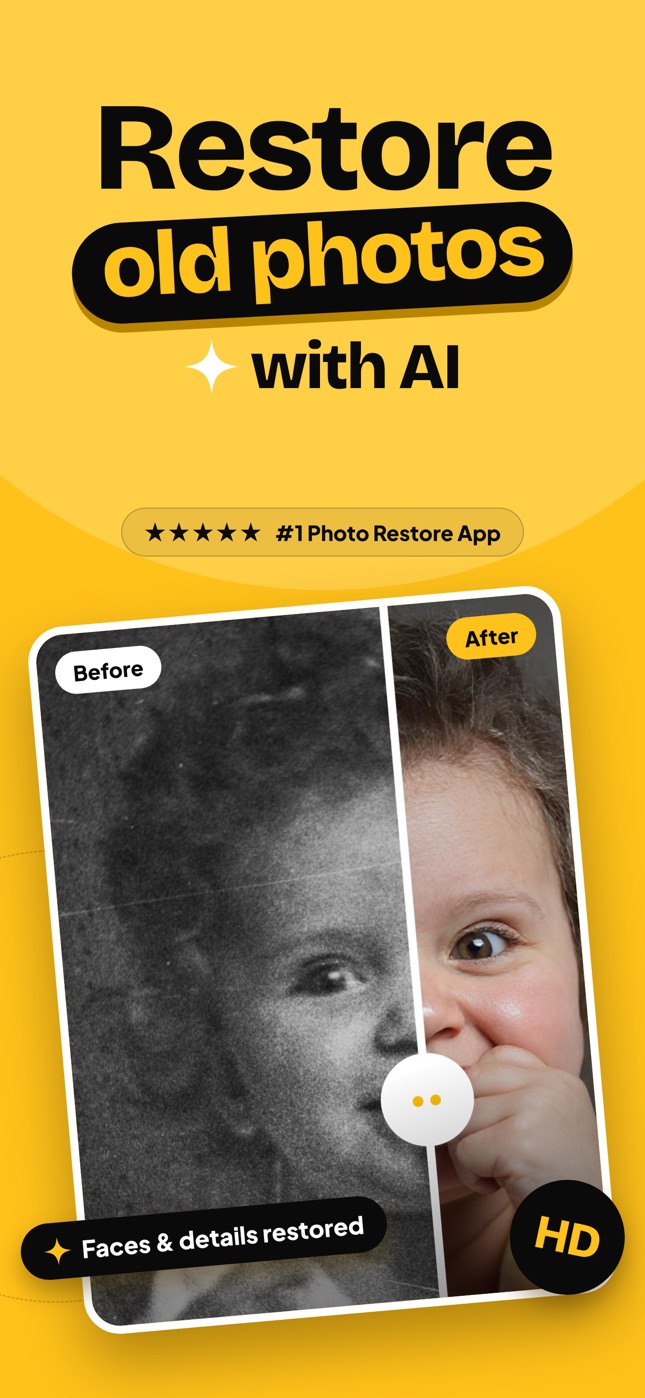
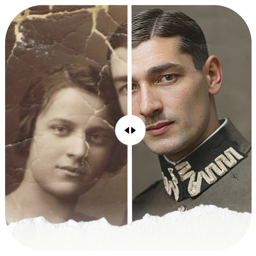
AI restoration removes damage and sharpens detail. If the result is still too small for your print size, AI upscaling can add pixels with believable detail. Read how to upscale old photos and increasing photo resolution for printing.
With Refixo, restored photos are exported in full quality without watermarks, so you can send them straight to a print service.
Check before you print
Zoom in to 100% and look for:
- Leftover specks in skies and plain backgrounds.
- Smudgy edges where tears were repaired.
- Over-sharpened halos around faces.
- Color shifts in skin tones.
Screens are brighter than paper. If your phone is on maximum brightness, the print may look darker than expected. Lower the brightness to about half when judging.
Paper and finish
- Matte or lustre paper suits old family photos: less glare, a classic look.
- Glossy gives punchier colors but shows fingerprints and reflections behind glass.
- Archival (pigment) prints last longer than standard prints and are worth it for heirlooms.
For framing and display tips, see how to frame old family photos, and for ordering prints, see printing restored photos.
Frequently asked questions
What resolution do I need to print a restored photo?
About 300 pixels per inch at the final size for close viewing. A 5 × 7 print needs around 1500 × 2100 pixels.
Can a small old photo be printed larger after restoration?
Yes, within limits. Scan at high dpi and use AI upscaling. Doubling the size usually works well; going much larger may look artificial.
Should I print restored photos in color or black and white?
Print restored originals as they were (black and white or sepia), and print colorized versions separately if you like them.
Why does my print look darker than my screen?
Screens emit light while paper reflects it. Lower your screen brightness when evaluating, and ask your print lab about color correction.
Restore it in seconds
Bring your old photos back to life
Refixo's AI removes scratches, tears and stains, sharpens faces and colorizes black & white photos in seconds. Free to download on iPhone and iPad, with a 3-day free trial.
Download on theApp Store