Restore Old Photos on iPad: A Bigger Screen for Family Memories
How to restore old photos on iPad: capture prints, fix damage and fading with AI, compare details on a large screen and share restored photos with family.
By Ayoub Farid · · 2 min read
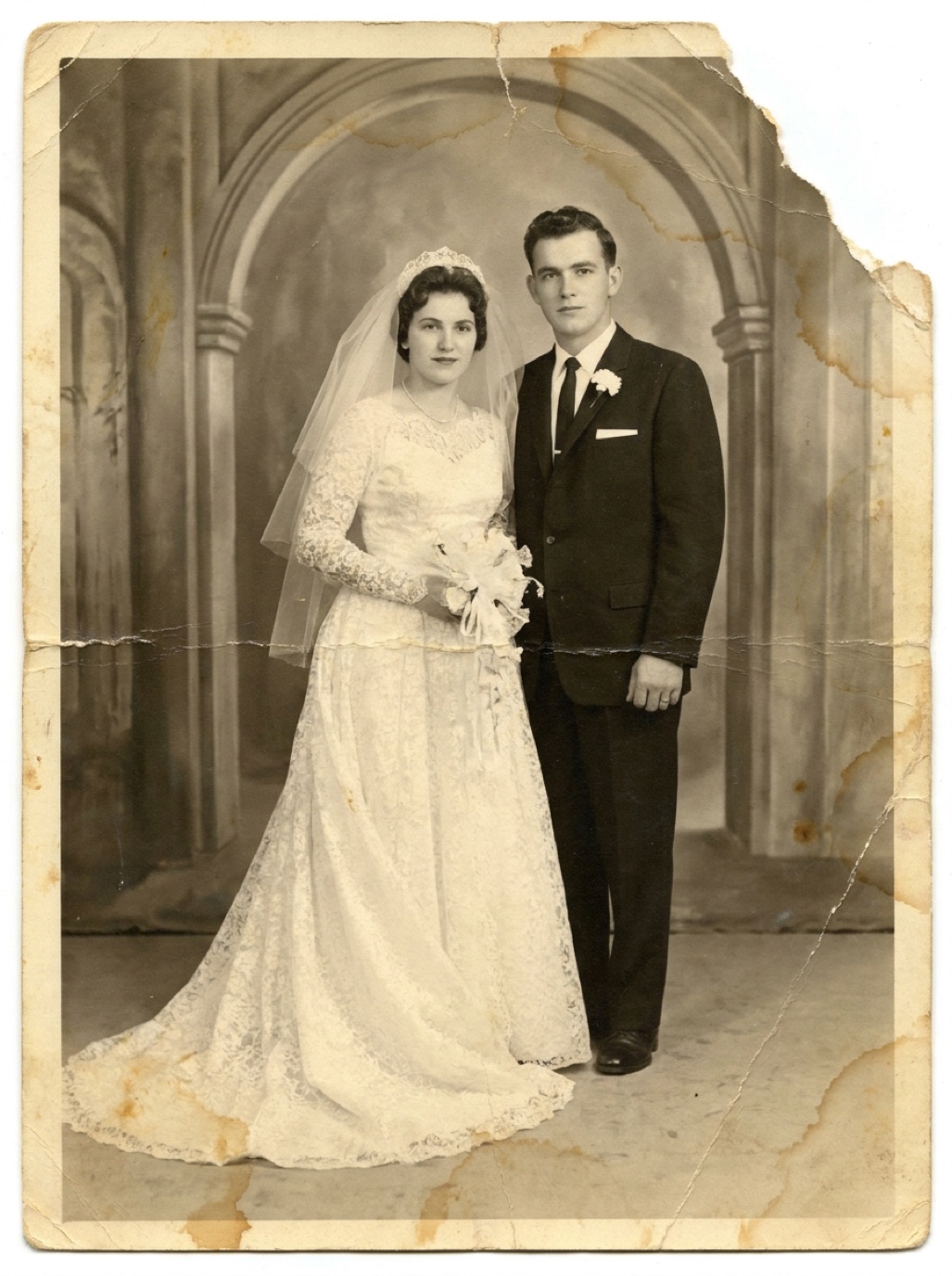

The iPad is an underrated tool for photo restoration. Its large screen makes it easy to inspect faces and details, it is comfortable to pass around the table when grandparents are identifying people, and many models have excellent cameras for capturing prints.
Why use an iPad for restoration?
- Detail checking: you can see whether a restored face really matches the original without squinting.
- Family sessions: restore a photo and immediately show it to the relatives who remember the day.
- Organizing: the larger screen makes it easier to sort albums, label photos and manage a large project.
Capturing prints with an iPad
The iPad is big, which makes it harder to hold steady over a small print. A few tricks help:
- Prop it on a stand or a stack of books with the camera over the edge, pointing down at the print.
- Use soft window light and avoid overhead lamps (see photograph prints without glare).
- Use the timer or a volume button to take the shot without moving the device.
- Fill the frame with the photo and keep it parallel to the lens.
If you already have scans from a flatbed scanner or a scanning service, simply import them into the Photos app via AirDrop, Files or iCloud.
Restoring on iPad
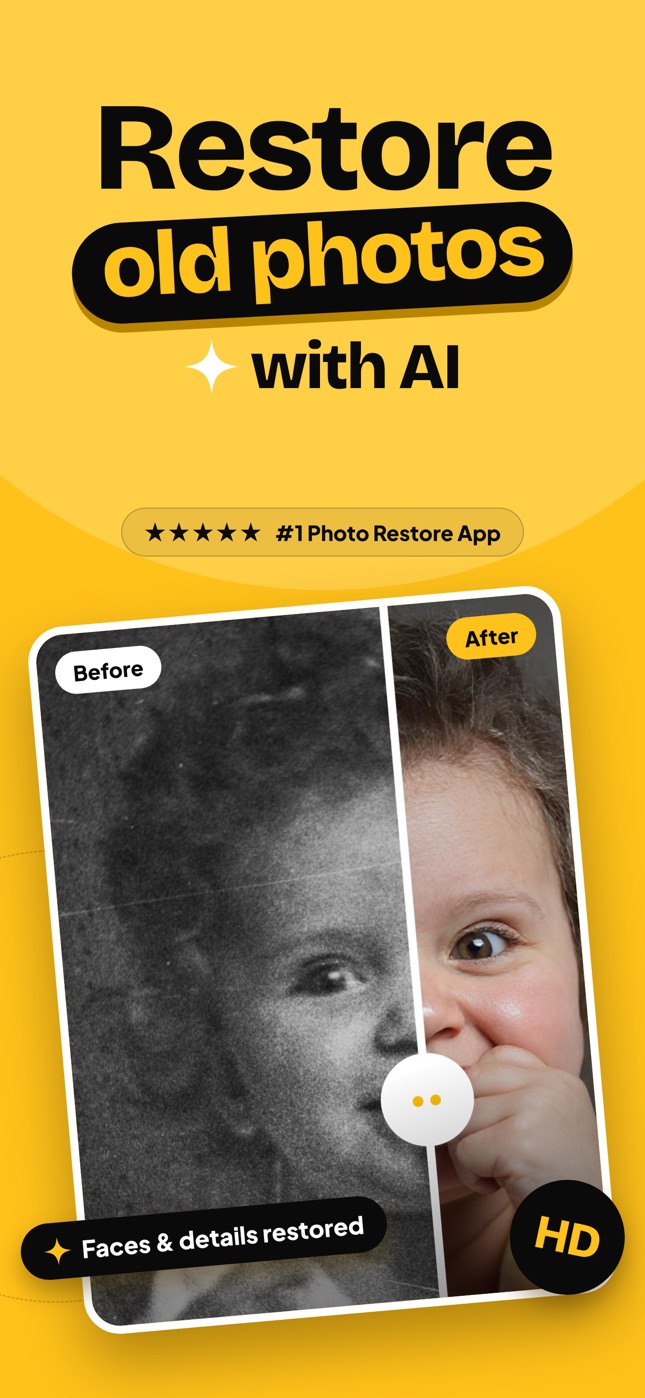
Refixo runs on iPad as well as iPhone. The process is the same:
- Choose the photo from your library or take one with the camera.
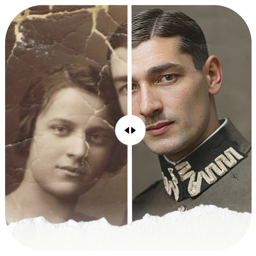
- Tap Restore to remove scratches and noise, repair damage, enhance faces and fix colors.
- Drag the comparison slider and zoom in to check eyes, hair and clothing.
- Save the result or share it.
For black and white photos, the restoration can also bring back natural color. Our guide to colorizing black and white photos explains when it works best.
Make it a family project
An iPad works well for a "photo afternoon" with older relatives:
- Restore a few photos in advance so everyone sees what's possible.
- Restore new ones live, and ask who is in each picture, where and when it was taken.
- Record names and stories in the Notes app or as captions (see interviewing grandparents about old photos).
These conversations are often more valuable than the restored images themselves.
Organizing the results
- Create albums like "Originals" and "Restored" in Photos.
- Add captions with names, places and years using the info (i) button on each photo.
- Back up everything to iCloud and one other location (see how to back up family photos).
Frequently asked questions
Does Refixo work on iPad?
Yes, Refixo works on both iPad and iPhone.
Is the iPad camera good enough for scanning photos?
Recent iPads have good cameras for capturing prints, especially in soft daylight. Keep the device steady and parallel to the photo.
Can I use Apple Pencil for restoration?
Refixo restores photos automatically, so no drawing is needed. You can still use the Pencil with other editing apps for manual touch-ups if you like.
Are restorations synced between iPhone and iPad?
Saved photos sync through iCloud Photos if it is enabled on both devices.
Restore it in seconds
Bring your old photos back to life
Refixo's AI removes scratches, tears and stains, sharpens faces and colorizes black & white photos in seconds. Free to download on iPhone and iPad, with a 3-day free trial.
Download on theApp Store